SSO Setup #
This document explains how to set up Single Sign-On (SSO) for FunnelStory customers using SAML or OIDC IdPs through Descope tenants.
Steps to configure SAML / OIDC IdP for FunnelStory’ Customer #
Creating descope tenant #
- Go to
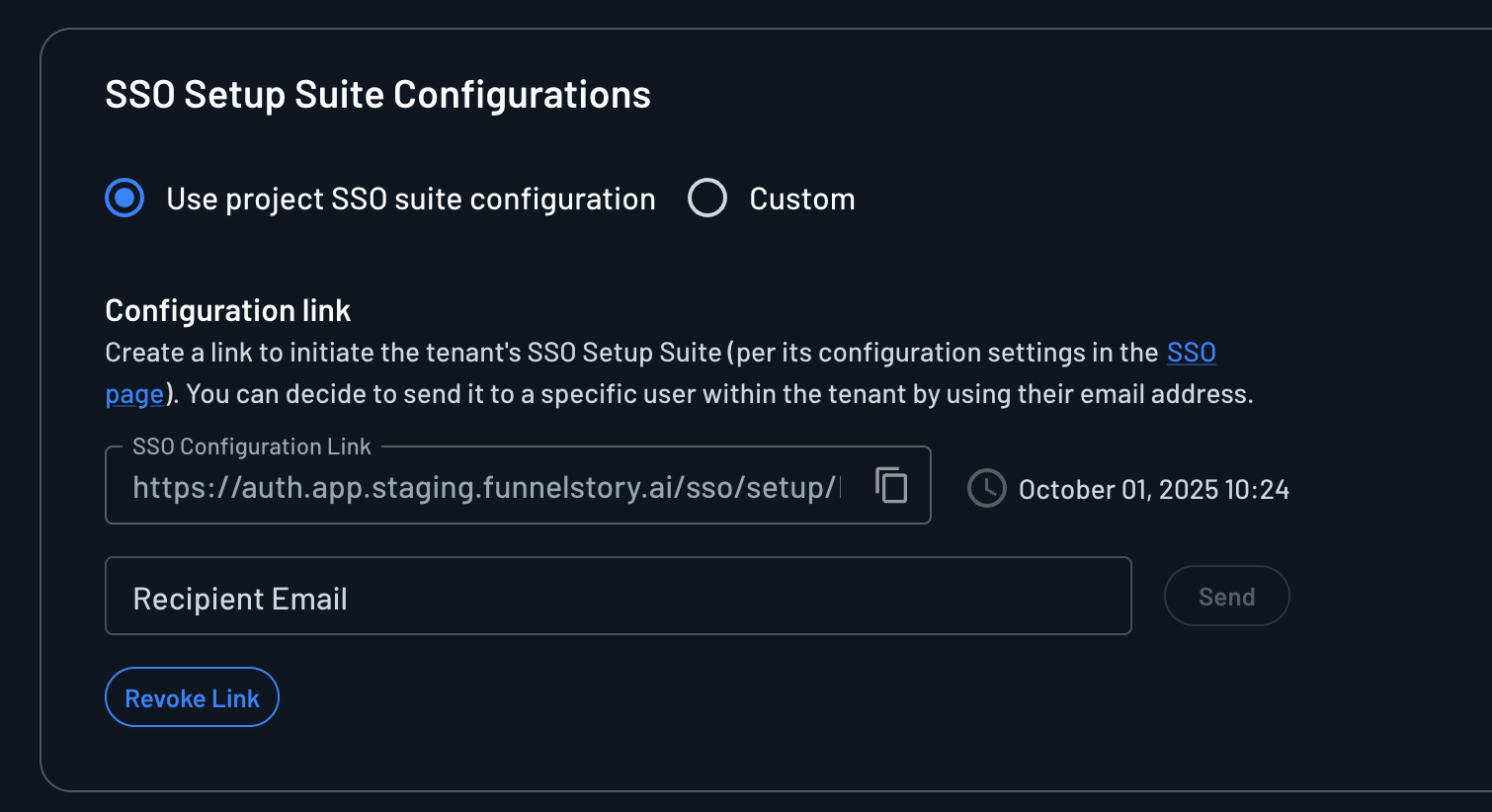
https://app.descope.com/tenantsand create a new tenant. - Within the tenant settings, you will see a section titled
SSO Setup Suite Configurations, open that and share the configuration link with the customer.
- Now visit
https://app.descope.com/settings/authentication/ssoand add the value forPost redirect callback URLashttps://app.funnelstory.ai/api/auth/sso/callback.` 3.1. Adding this to authentication methods directly will ensure that this does not need to be configured for every tenant separately
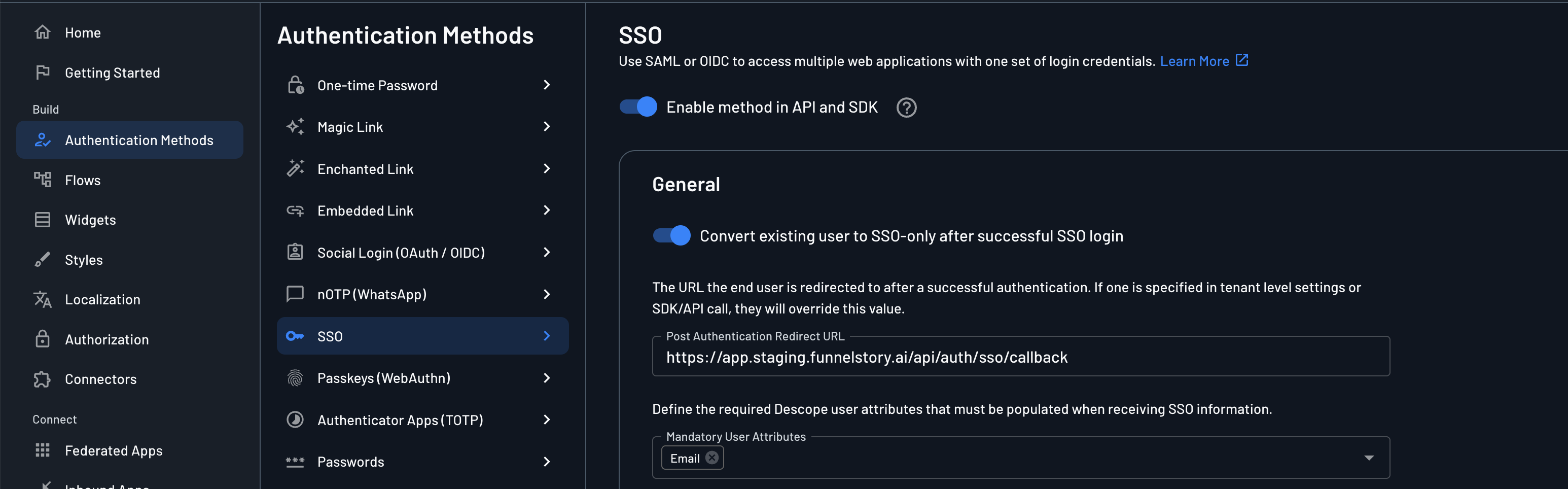
- Ensure that in the authentication methods,
emailis added in the Mandatory User Attributes. 4.1. Also ask user to map this while configuring the SSO. - Once the user configures the app properly, they should be able to login using the IdP initiated login.
- For SP initiated login, we right now only support email code, which users can get via the login page
How it Works #
- Descope Tenant: Each customer’s SSO configuration is managed within a dedicated “tenant” in Descope.
- New Endpoints:
/api/auth/sso/login: Initiates the SSO login flow. Requires atenant_idURL parameter (e.g.,?tenant_id=...)./api/auth/sso/callback: Handles the redirect from the IdP after successful authentication.
- IdP Configuration:
- Redirect URL: IdPs must be configured to redirect to
https://app.funnelstory.ai/api/auth/sso/callbackafter successful login. This is set in Descope for the tenant. - Email Attribute: All IdPs must send the user’s email as the
emailproperty in the SAML assertion/OIDC token.
- Redirect URL: IdPs must be configured to redirect to
- Login Flows Supported:
- Service Provider (SP) Initiated: User starts login from FunnelStory, providing a
tenant_id. - Identity Provider (IdP) Initiated: User clicks a FunnelStory app icon in their IdP (e.g., Okta, Google Workspace).
- Service Provider (SP) Initiated: User starts login from FunnelStory, providing a
- User Management:
- Upon successful SSO login, if the user doesn’t exist in FunnelStory, a user account will be created, and they will be sent to onboarding (existing flow).
- Existing users will be logged in.
- Authentication Only (AuthN): This integration focuses solely on user identity verification. Authorization (what the user can do) is handled separately within FunnelStory.
Troubleshooting #
Possible issues:
{"errorCode":"E011003","errorDescription":"Request is invalid","errorMessage":"The RelayState field must be a valid value","message":"The RelayState field must be a valid value"}
Solution: Add redirect callback in Descope as https://app.funnelstory.ai/api/auth/sso/callback
SCIM #
How it works #
- Groups and SCIM Configuration: Customer needs to setup SCIM configuration from IdP via the Descope SSO suite. The SSO configuration needs to have groups mapping for roles to work.
- Workspace Tenant Mapping: After a user creates the SCIM configuration, we need to create a mapping from workspace <> tenant in descope. That can be via
POST /api/workspace/tenant_mappingwith payload as{ tenant_id: "xxx" }. Wheretenant_idis available in descope - https://app.descope.com/tenants. - IdP to Descope sync: Each user is synced from IdP via the SCIM provisioning to Descope. Users map from
groupin IdP to specified role as per the SSO configuration. Users with only thetenant_idmapped to workspace are fetched from Descope.
- If a user is removed from the group in IdP then the user’s status is updated to
disabledin Descope. - If a user is deleted from the IdP, then the user is deleted in Descope.
- Descope to FunnelStory sync: FunnelStory syncs the user from Descope via
GET /api/workspace/users?sync=trueendpoint. This endpoint is called once a user visits/admin/teampage on the UI.
- If a user is not present in the workspace and is available via descope API, it is added to the workspace with
ssoastruealong with the role from the user tenant’s. We pick the first role that matches in the pre-defined role and use that. If not role is matched thenaccount_useris considered as the default role. - If a user was synced in DB as
ssoand is now not available in the Descope users list or has statusdisabledthen we set thedeactivated_atfor the user. - If a user’s role has changed in Descope (via IdP group mapping), then the user is updated in the DB with the updated role.
Configuration #
Internal: #
- Add
DESCOPE_MANAGEMENT_KEYin the environment variables.- It should only require
Asset Management - Read Onlyrole as we are only reading the users from descope.
- It should only require
- Create roles in FunnelStory Production project in descope. Ensure all the available roles in FunnelStory are added properly.
- Keep the roles lower cased and same as what is expected in the API which is like:
super_admin, data_admin…
- Keep the roles lower cased and same as what is expected in the API which is like:
- Never delete SCIM role in Descope console as that will break the SCIM configuration.
- If this is broken, please rotate the key for tenant (can be done via the sso configuration page) and ask customer to update same on the IdP’s Application.
- For enabling the users sync on a workspace, we will also need to add
tenant_mappingwhich can be done by callingPOST /api/workspace/tenant_mappingwith payload as{ tenant_id: "xxx" }.- You can get this
tenant_idfrom descope console at - https://app.descope.com/tenants. Ensure that you map the correct workspace to the tenant.
- You can get this
- Hide the
Tenant AdminandSCIMrole by editing the same so that it is not visible to the customers while configuring the SSO.- Option to edit the
Tenant Adminmight be limited to the project owner.
- Option to edit the
Customers: #
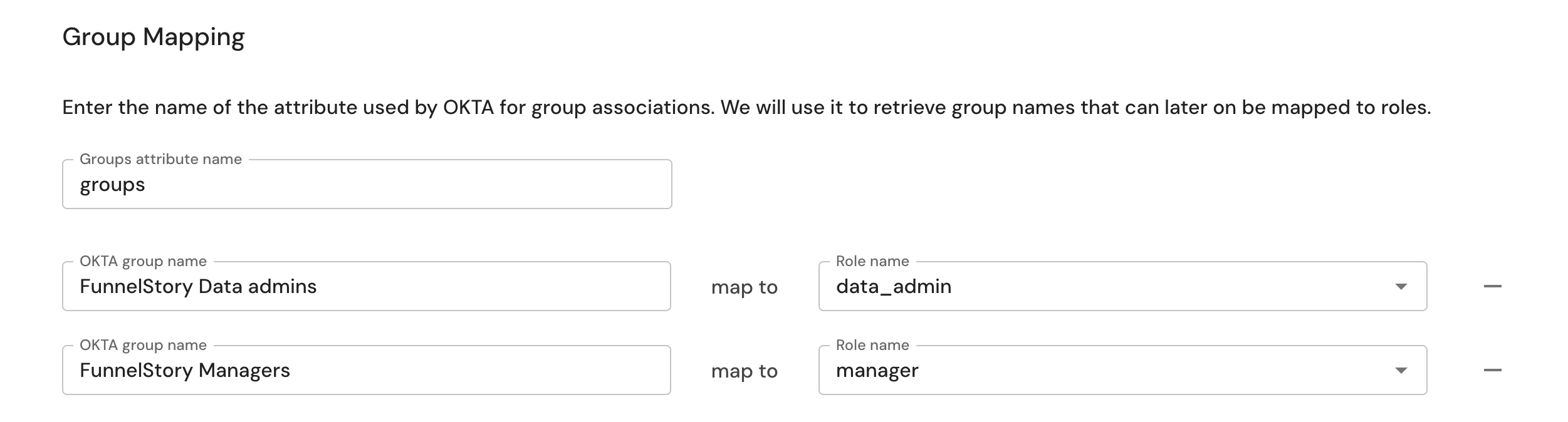
- To assign roles to SSO users in FunnelStory, customers need to ensure that users are part of some group.
- For the attribute name, it can be named as
groupsin the IdP and ensure that the SSO setup is also using the same name for the field. - While configuring the SSO from Descope SSO configuration suite, ensure that the group name exactly matches what is entered in the configuration setup.
- Ensure that no default role is selected / configured. FunnelStory assigns
account_user(the base role) as the default role automatically. - For group mappings, ask users to add the
Groups attribute namesame as what they configure in the IdP. It should match in the SSO configuration setup as well as IdP for correct group mappings. - If a user’s group is changed in the IdP then ensure that the group is synced again either manually or automatically to reflect the changes in FunnelStory for user’s role.
- For Okta, it does not sync the groups as soon as there is an update so if the changes are not reflected in FunnelStory, ensure the groups as pushed / synced again.